You Don't Need to Be a Developer to Automate Like One
The biggest challenge in managing enterprise content at scale often means doing the same manual work again—bulk permission updates, project workspaces created from scratch, metadata tags applied one folder at a time. None of these tasks are complex, yet they're repetitive, time-consuming, error-prone, and difficult to scale.
Those clicks really add up. The average knowledge worker spends 209 hours every year on duplicative work. That’s more than five full work weeks lost to manual effort.
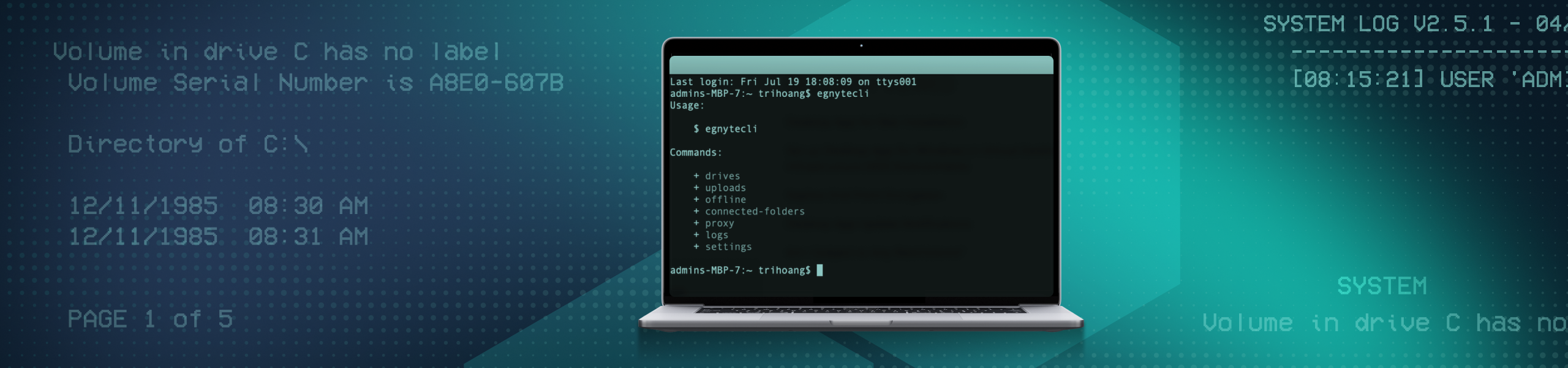
Egnyte CLI (Command Line Interface) eliminates that overhead by enabling AI assistants like Claude Desktop to automate repetitive content management tasks. And because AI assistant executes repetitive tasks directly from the command line instead of a graphical interface, it also uses fewer system resources, making large-scale content operations faster and more efficient and enabling AI assistants like Claude Desktop to automate repetitive content management tasks.
How GUIs Become a Bottleneck at Scale
A graphical interface works well when you're updating a file, sharing a folder, or making a quick change. But enterprise content management rarely happens one task at a time. It happens in bulk, under deadlines, and across thousands of files. For example:
- An AEC team starting a new project needs multiple project workspaces created, permissions assigned, and BIM files uploaded before the kickoff meeting.
- A financial services team closing a fund needs hundreds of documents tagged, access restricted, and audit logs ready for compliance reviews.
- A compliance manager needs to apply a policy update across thousands of files spanning multiple departments.
None of these tasks are technically complex. They simply involve repeating the same actions repeatedly. In a GUI, every action requires the application to stay open, render screens, respond to clicks, and wait for user input. As the workload grows, so does the time and effort required to complete it.
Egnyte CLI Changes the Way Teams Work
A command-line interface (CLI) works differently from a traditional application. Instead of launching an entire app with windows, menus, and background processes, it runs only the command you ask it to execute. That means it starts almost instantly, uses very little CPU or memory, and is perfect for repetitive tasks or automation:
- For IT teams, that's one less heavyweight application to deploy and manage, with minimal impact on system resources.
- For knowledge workers, it offers a faster, more flexible way to interact with their content using the tools they already know, whether that's the terminal, Claude, or other AI-powered workflows.
Everyone gets a workflow that fits the way they work, without sacrificing security or governance.
The benefits become even more apparent during high-volume operations. Whether you're uploading thousands of files, provisioning workspaces, updating metadata, or changing permissions, a single command can replace hundreds or thousands of manual clicks. What once took an afternoon can often be completed in minutes.
The impact goes beyond speed. Fewer manual steps mean fewer mistakes, more consistent execution, and less time spent on repetitive administration.
Getting Started With Egnyte CLI and Claude
Egnyte CLI changes the conversation for non-developer teams. Egnyte CLI works with Claude through the Egnyte Skill, which means you do not need to memorize command syntax. You describe what you need in plain English and the CLI executes it.
Getting started takes just a few steps.
Step 1. Connect Claude to Egnyte
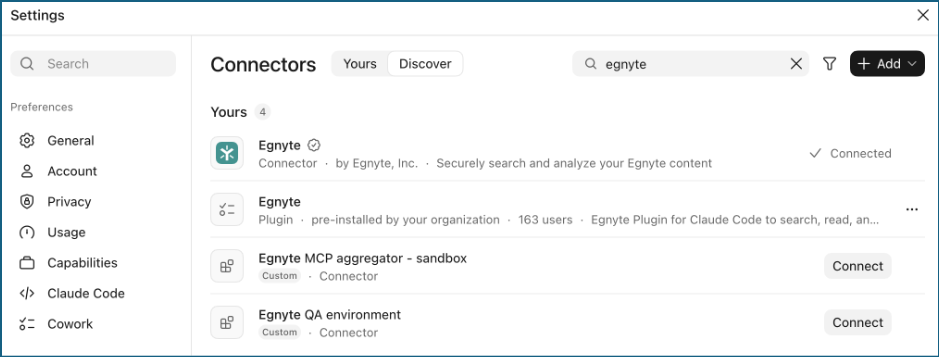
In Claude, go to Settings > Connectors > Browse Connectors, search for Egnyte, and add the Egnyte connector to your workspace.
Step 2. Install the Egnyte CLI
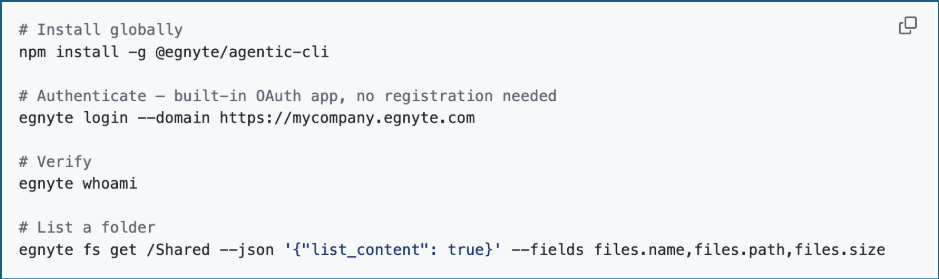
Download and install the Egnyte CLI. It’s available for Windows, macOS, and Linux and takes only a few minutes to set up.
Step 3. Authenticate Your Egnyte Account
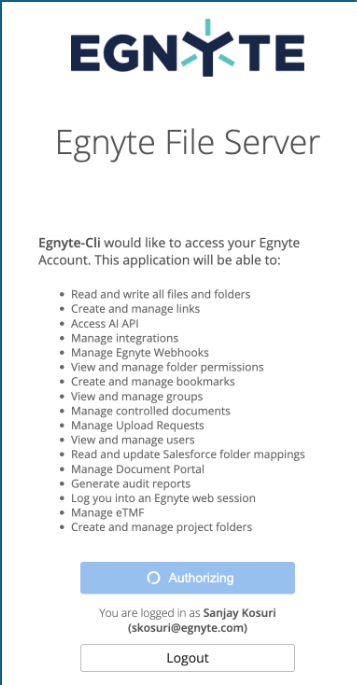
Sign in using your Egnyte credentials. The CLI automatically inherits your existing user permissions, so it can access only the files and folders you're already authorized to manage.
Step 4. Start Managing Content with Claude
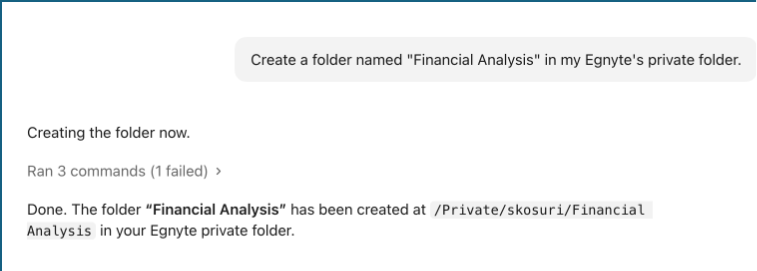
Simply tell Claude what you want to do. Whether you need to create workspaces, upload files, update permissions, apply metadata, or perform bulk operations, Claude translates your request into Egnyte CLI commands and executes them for you.
Step 5. Confirm Everything Is Working
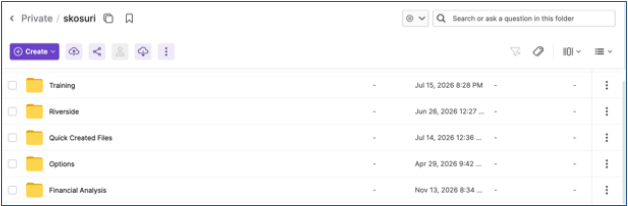
Ask Claude to list the folders in your Egnyte domain or perform a simple task, such as creating a test folder. If the request completes successfully, you're ready to automate your content management tasks.
Put Egnyte CLI to Work for You
Once connected, you can perform many of the content management tasks that used to require hours of manual work or an IT ticket. Simply describe what you want in Claude. Here are some typical use cases:
- Manage files in bulk: "Upload all CAD drawings from the Henderson project into the /Projects/Henderson/Design folder and lock them for review." Upload thousands of files, move content, or lock documents for review in a single request. Large file transfers automatically resume if the connection is interrupted.
- Provision project workspaces: "Create a new project workspace for the Westfield Tower project with the standard AEC folder structure and assign permissions to the project team." Create consistent project workspaces with the right folder structure and permissions in minutes instead of repeating the same setup steps every time.
- Update metadata and permissions: "Apply the Q2 retention policy tag to all contracts modified before March 31 and generate an audit log." Apply metadata, update permissions, and generate audit reports across thousands of files with a single prompt.
Built for Both Technical and Business Teams
Egnyte CLI isn’t just for developers. With natural language support through Claude, anyone responsible for managing content at scale can automate repetitive tasks without learning CLI commands.
Whether you're a BIM manager provisioning project workspace, a compliance officer preparing for an audit, or an IT administrator managing permissions, Egnyte CLI helps you complete repetitive work faster, more consistently, and with less effort.
Works With Your Existing Permissions
Getting started is simple, and your existing security model stays the same. When you sign in with your Egnyte account, the CLI automatically inherits your existing user permissions. You can only view, access, and modify the files and folders you're already authorized to manage.
To get started, sign in with your Egnyte account, and the CLI automatically inherits your existing permissions, so you can only access and modify content you're authorized to manage. Whether you work from the command line or through Claude, every action is logged for auditing, ensuring your content remains secure, governed, and compliant in Egnyte.
For years, organizations had two choices: spend valuable IT time managing content at scale or rely on slow, repetitive manual work. Egnyte CLI changes that. Routine content operations become repeatable, consistent, and dramatically faster. One prompt. Thousands of files. Minutes instead of hours.
Ready to get started?
Talk to your Egnyte sales representative to enable Egnyte CLI and the Claude integration and discover how your team can simplify enterprise content management with natural language.
Share this Blog


AUTHOR

PRODUCT ARTICLES